
DSC-BRAIN USER GUIDE · SETTINGS
Site profile
The site profile says where the kit is. The clock, the seasons and the units follow it. Nothing is assumed from a region: every value is picked by you and read back.
● Running on our test kit: 9.10.0 · kit firmware 9.0.0.0 · last report 22 Oct 2026
Status: Live. On by default in brain 9.9.0.
On this page
Where to find it
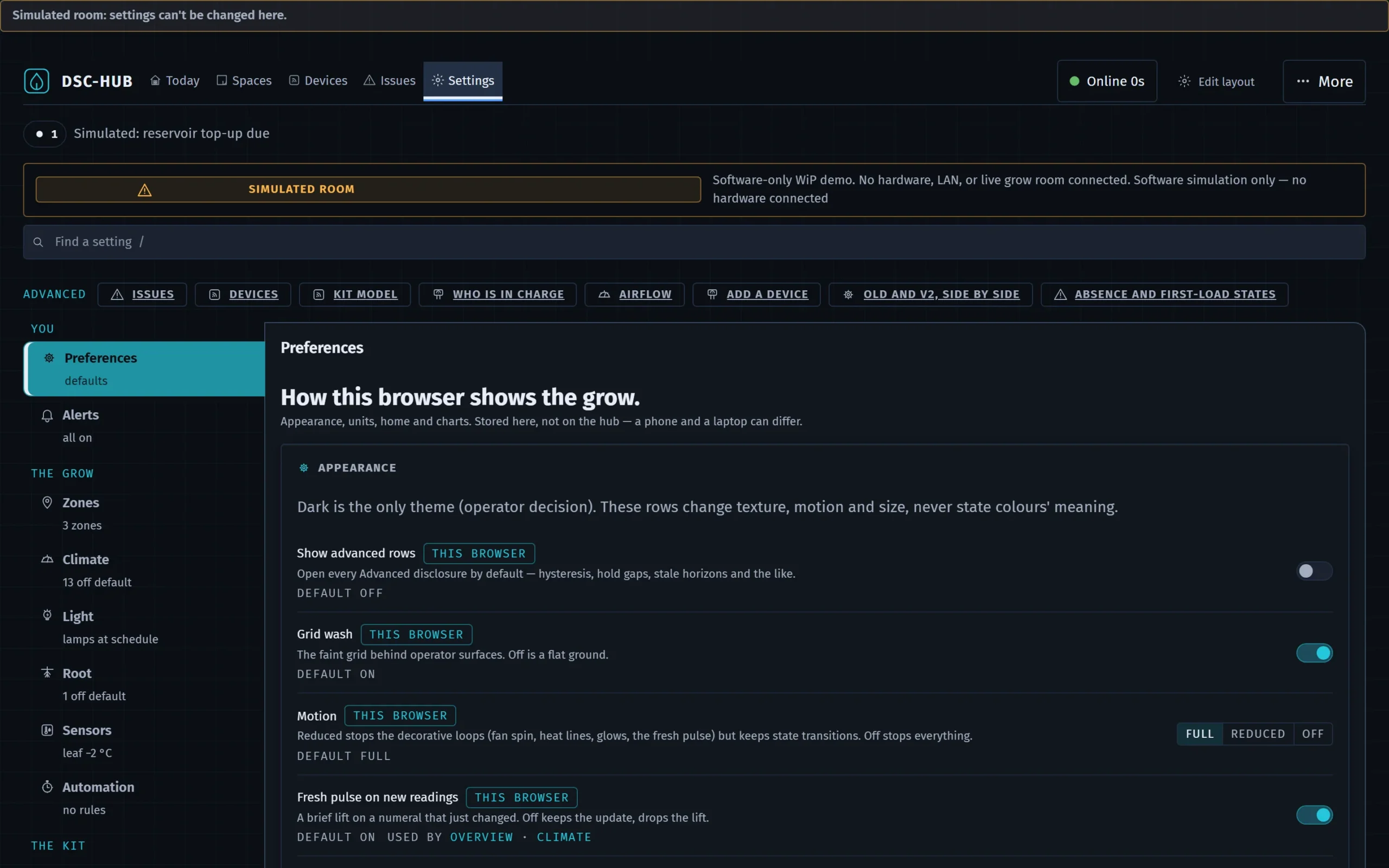
In Settings, open System. The first card is “Site profile”. The first-run guide and the Setup welcome step, under “Where is the kit?”, show the same page. A fresh kit opens in Setup, not on Today.
The rules it follows
- No regional defaults. The time zone is never assumed. An earlier setup’s zone is offered as a question to confirm. It is not saved by itself.
- Picks, not typing. Zones, climate zones, units, seasons and dates are lists. The only typed values are numbers: a price per kWh and, for manual outdoor values, the monthly temperatures.
- Every save is read back. The line under a section starts with Applied, Not applied or Unconfirmed, and says what the brain now reads.
- Location is optional. You can decline it. Nothing below is guessed from it.
Time zone
If the brain has a proposed zone, a card asks you to confirm it with a button reading “Confirm” and that zone. Otherwise you pick from the list under “Pick a time zone”. Until a zone is confirmed, lamp schedule controls stay locked, and the screen says so. This protects the lights from a wrong clock.
A new kit has no default zone. The hub runs the lamp schedule on this clock, so the brain does not build device firmware for a new kit until the zone is confirmed here. The build then refuses with “this kit’s time zone is not confirmed yet”. A kit that was already running keeps the zone its firmware was built with.
Where the kit is
- Hemisphere. Northern, Southern or Not set.
- Climate zone. A pick, or Not set.
Units
Temperature, length and volume each have a pick. Values are stored in SI units. The picks change only how values are shown. Temperatures are shown in Celsius today.
Seasons
Choose a season style: “Four seasons” or “Wet and dry”. Then pick the start month and day for each season and choose “Save season dates”. Changing the style clears the dates, because they belong to the old style’s names. The brain keeps the old dates until you save new ones. Once known, the seasons show as cards: “Summer starts …”.
Outdoor conditions
Pick the source: “No outdoor reading”, “A local sensor”, “Manual monthly values” or “A weather service I choose”. With manual values you pick the coldest overnight temperature for each month in °C.
Electricity tariff
Pick a kind (Flat rate or Time of use) and a currency. A flat rate also takes a price per kWh. Time of use bands are not editable on this screen yet, and the screen says so.
Clock changes
The screen lists the clock changes in the next year for your zone, each reading “Clocks go forward at” or “Clocks go back at”, with the wall time before and after, and what the change does to the photoperiod. If there is none: “No clock change in the next year for” your zone. If no zone is set, the clock changes are unknown, and the screen says that.
Lamp window and the dearest price band
If a dearest price band is set, the screen shows how many hours of each lamp’s lit window fall in it. If no band is set, or it cannot work that out, it says so and why. It does not show a guess.
The first-run guide
The first step of the first-run guide counts four site facts: time zone, hemisphere, climate zone and units. It shows “Facts complete n of m”. See Add a device.
Related: Settings: Network and System and Photoperiod, holds and catch-up.